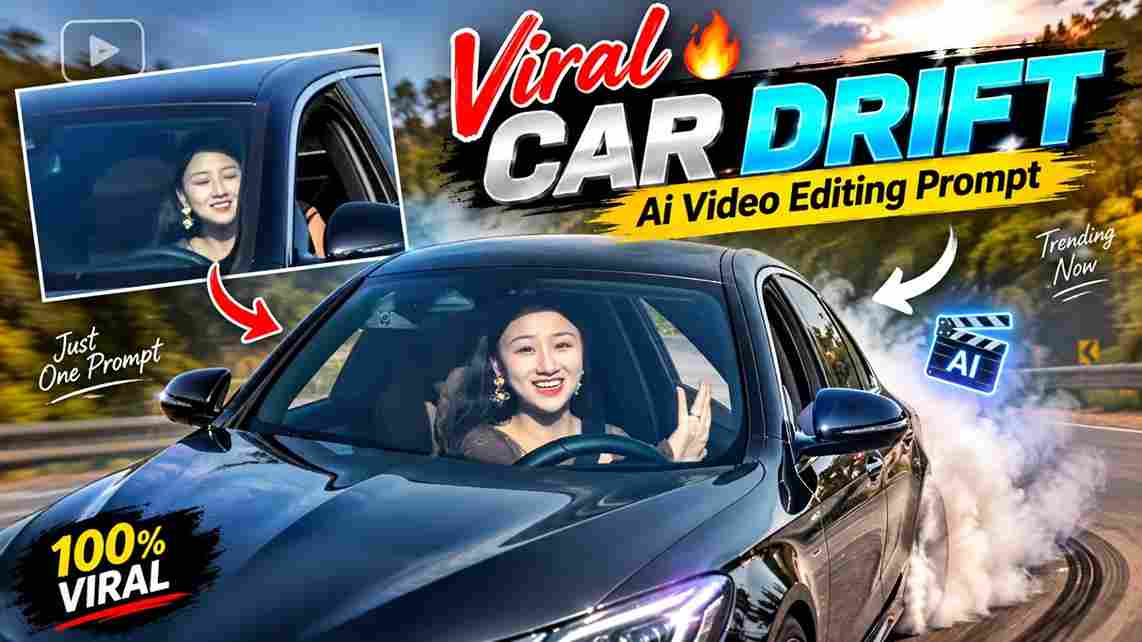
AI video generation has made it easier to create exciting car videos without complicated editing or expensive equipment. The Trending Car Drift AI Video Editing Prompt lets you transform a normal car image into a cinematic drifting video using Flow AI. With the right reference image and prompt, you can create realistic car movement, tire smoke, dynamic camera angles, and an energetic automotive atmosphere. This type of AI video is perfect for Instagram Reels, YouTube Shorts, Facebook Reels, and other social media platforms where short and eye-catching car content performs well.
What Is Car Drift AI Video Editing?
Car Drift AI Video Editing is a creative way to turn a static car image into an AI-generated video showing the vehicle performing a stylish drift. Instead of manually creating the movement, Flow AI can generate motion based on your reference image and instructions. The prompt can describe the car’s movement, camera position, environment, lighting, tire smoke, and overall cinematic style. By keeping the original car details consistent, you can create a realistic-looking automotive clip that feels more dynamic than a normal photograph.
Trending Car Drift AI Video Prompt
Save this video for reference ⬇️
Prompt For Google Gemini⤵️
A cinematic night shot of a young man with dark wavy hair wearing sunglasses and a white shirt, driving a black Mercedes car. He is smiling and waving at the camera. Cool neon lighting inside the car, blurred city lights in the background, highly realistic, 4k video ratio 9:16
Prompt For Flow Ai⤵️

Replace the driver in the reference video with the person from my uploaded reference image. The uploaded person should naturally occupy exactly the same position and posture as the original driver. Keep everything else exactly unchanged: the same car, interior, steering wheel, road, location, background, lighting, camera angle, camera movement, driving motion, timing, reflections, shadows, and overall visual style.
How to Create Car Drift AI Video Using Flow AI
Creating this trending AI car video is simple. Follow these steps:
- Open Flow AI and sign in to your account.
- Start a new video project and choose the image-to-video option available to you.
- Upload reference car ai video and your face photo.
- Copy the Car Drift AI Video Editing Prompt from this article.
- Paste the prompt into the video generation prompt box.
- Select your preferred video duration and aspect ratio.
- Start generating the AI video.
- Wait for Flow AI to process your reference image and prompt.
- Preview the generated drift video and check the car movement and details.
- If needed, adjust the prompt and generate another version.
- Select the most realistic result and add music or sound effects in your preferred video editor.
- Export the finished video and share it as a Reel or Short.
Upload Reference Video and Your Photo
For this AI car drift video, you need to upload two references in Flow AI: a reference video for the motion and a photo of yourself for the person or face reference. Choose a short AI-generated car drift video that has the movement, camera angle, and overall motion style you want to recreate. Then upload a clear, high-quality photo of yourself where your face and appearance are clearly visible. The reference video will guide the movement and cinematic style, while your photo will be used to create the personalized face or person effect. For better results, use clear and well-lit references.
How the Reference Video and Photo Work
The reference video is mainly used to guide the AI on how the motion should look, including the car movement, camera movement, speed, transitions, and overall visual style. Your uploaded photo acts as the personal reference, allowing the generated video to use your facial appearance while following the motion style of the reference video. When creating the prompt, clearly explain that the reference video should be used for motion and camera movement, while the uploaded photo should be used as the identity reference. This helps keep the two inputs separate and makes the intended result easier for the AI to understand.
Tips for Better Car Drift AI Results
For better results, always start with a clear and high-resolution car image. Keep your prompt specific about the vehicle details that must remain unchanged. If the generated car changes shape or the wheels look distorted, try simplifying the movement and emphasizing that the original vehicle design must remain consistent. You can also generate multiple versions and select the one with the smoothest motion. Before posting, carefully check the wheels, headlights, body panels, tires, road, and smoke effects for unwanted AI changes. Small prompt adjustments can often improve the final result.
Conclusion
The Trending Car Drift AI Video Editing Prompt is a simple way to turn a normal car image into an exciting cinematic drift video with Flow AI. By using a clear reference image and detailed movement instructions, you can create realistic drifting motion, tire smoke, dynamic camera movement, and a premium automotive atmosphere. Experiment with different roads, camera angles, lighting styles, and car images to create your own unique versions. After generating the video, add suitable music or sound effects and share your finished car drift edit on your favorite social media platform.